
ACROBOTIC Industries
ESP8266: Programming In JavaScript Using Espruino Firmware
Overview
Time to complete: 15–20min; Level of difficulty: Intermediate
This guide will show you how to load the Espruino firmware to the ESP8266 Serial to Wi-Fi module; the firmware allows you to then use JavaScript to write programs that can be run by the module. We’ll use a plug-n-run development board, which carries an ESP-12E module and a USB to Serial adapter.
List of Materials
| Item Name | Qty. |
|---|---|
| ESP8266 (ESP-12E) Development Board | 1 |
| Item Name | Qty. |
|---|---|
| USB-A to Micro-B Cable Male/Male | 1 |
| Item Name | Qty. |
|---|---|
| Resistor 1/4W Through Hole (100Ohm) | 1 |
| Item Name | Qty. |
|---|---|
| 5mm LED - Super Bright Blue | 1 |
What is the ESP8266?
We've written a very detailed account of the ESP8266 System On a Chip (SoC), if you want to find out the full story behind this little chip we invite you to read it:
http://learn.acrobotic.com/tutorials/post/what-is-the-esp8266
The ESP8266 Serial to Wi-Fi SoC, released in the summer of 2014, has become a center point in the development of inexpensive IoT applications. Given that Wi-Fi chips have been available for around a decade, you may be wondering what makes the ESP8266 special. Besides being released at the 'right' time, meaning as Internet Of Things (IoT) have entered everyday speak among developers and tech entrepreneurs, there are a few reasons behind its meteoric rise in popularity:
- Very capable microcontroller (32-bit 80MHz, built-in Wi-Fi, adequate I/O buses and peripherals; full specs below)
- Extremely low-cost; ~$1 in moderate volumes)
- Open SDK that works with GCC
- Demonstrated ability to run Lua (NodeMCU), JavaScript (Espruino), and Python (MicroPython) interpreters!
- Arduino IDE integration
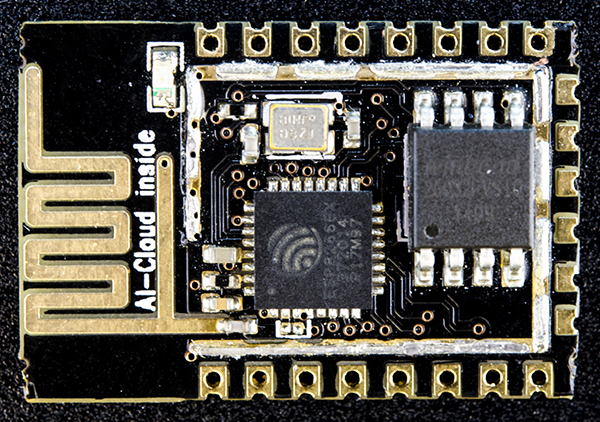
Because the ESP8266 was only released in a tiny-sized, tough-to-solder, QFN package, a market was opened for inexpensive breakout and adapter boards that facilitated working with the chip. The most popular were a series of modules branded ESP-NN – where NN is a 2 digit number sometimes followed by a letter.
Step-by-step Video
We've made a video following the process described in this tutorial, if that's your preferred media for tutorials go right ahead:
JavaScript on the ESP8266 (ESP-12E) using Espruino
Download Espruino Image
Navigate to the download section of the Espruino project website, and download the latest version of the Espruino firmware. At the time of this writing, the latest release is version 1.85.
Once downloaded, go ahead and move the zipped file to a known location on your computer. For this tutorial, we'll create a folder inside our user's directory called ESP8266-Espruino. From your Terminal App type in:
cd ~ && mkdir ESP8266-Espruino
We then move and unzip the file inside said directory.
Installing pySerial
pySerial is a Python module that allows a Python program to communicate with a serial (e.g., USB, RS232) port. The tool that we'll use to load the Espruino firmware onto the ESP8266 Development Board is written in Python, and it uses this module to communicate with the USB port for writing out the firmware to (specific) devices connected to it.
Arguably, the simplest way to install this is by downloading the source code from the project's Github repository:
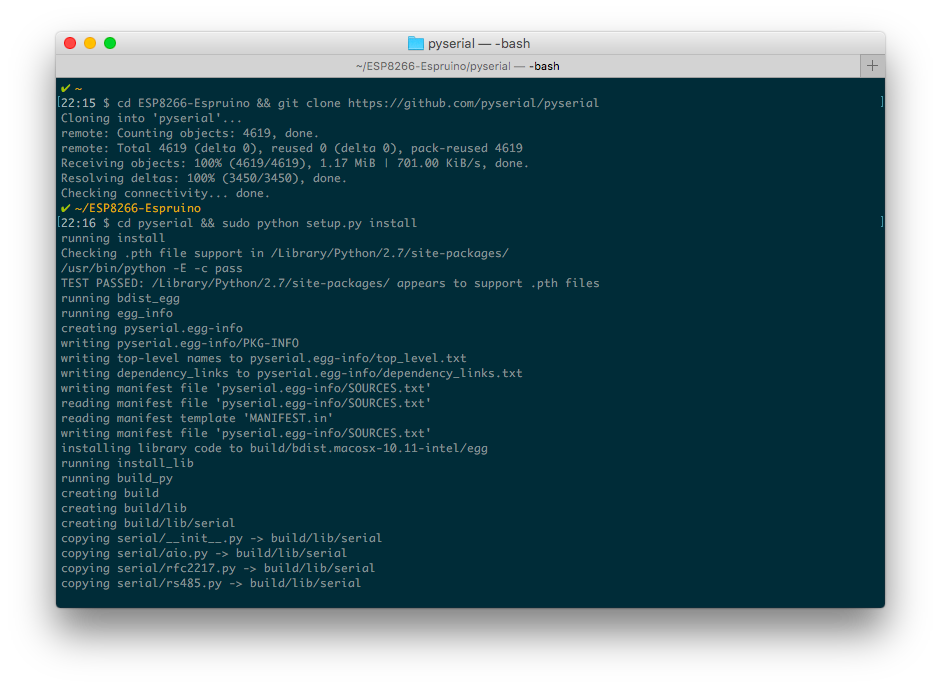
cd ESP8266-Espruino && git clone https://github.com/pyserial/pyserial
Then, we can install the pySerial module in our system. For this tutorial, we'll make it available for our entire system (system-wide install), but you could also do this inside a Python virtual environment.
cd pyserial && sudo python setup.py install
Downloading Software For Loading Espruino Onto The Board
The last piece of software we need is the program that will allow us to write the Espruino firmware onto the ESP8266 Development Board over USB (using amongst other things the pySerial module). To get this tool we can simply:
cd .. && git clone https://github.com/themadinventor/esptool
Because Espruino runs in a variety of boards, we need to find the directory with the files corresponding to the ESP8266. This is located inside our espruino_1v85 folder. We can then start writing the Espruino firmware with ease!
cd espruino_1v85/espruino_1v85_esp8266
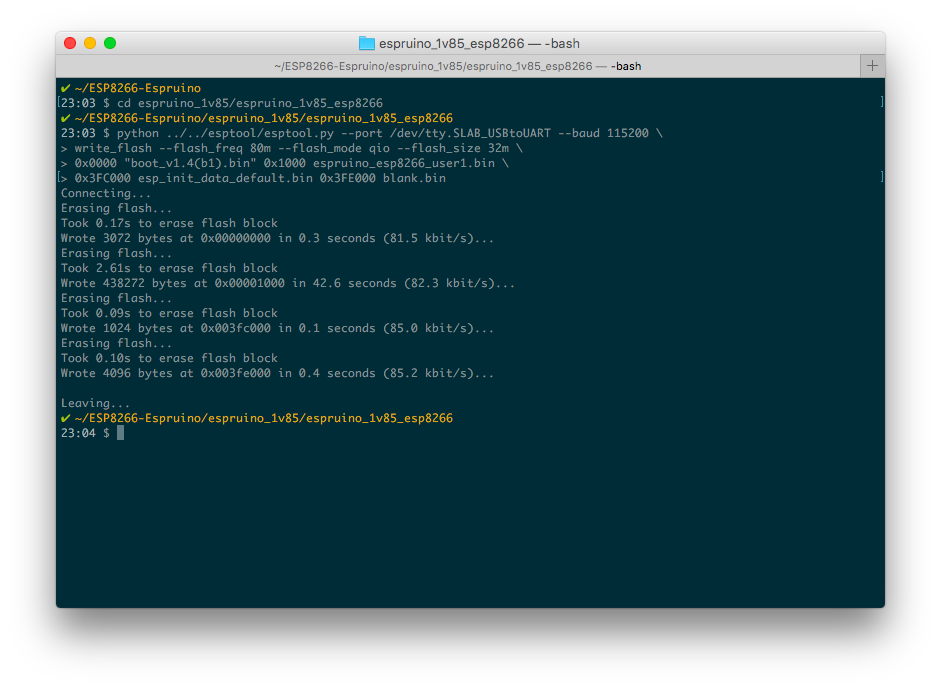
python ../../esptool/esptool.py --port /dev/tty.SLAB_USBtoUART --baud 115200 \
write_flash --flash_freq 80m --flash_mode qio --flash_size 32m \
0x0000 "boot_v1.4(b1).bin" 0x1000 espruino_esp8266_user1.bin \
0x3FC000 esp_init_data_default.bin 0x3FE000 blank.bin
If everything goes well, you should get something similar to what's shown on this screenshot (no errors):
Sending JavaScript Over USB
Now we can use any Serial Terminal programs to start sending JavaScript commands over USB to the ESP8266, and have the Espruino firmware interpret them accordingly. In our case, we'll use the program screen available in OSX, so from our terminal we enter:
screen /dev/tty.SLAB_USBtoUART 115200
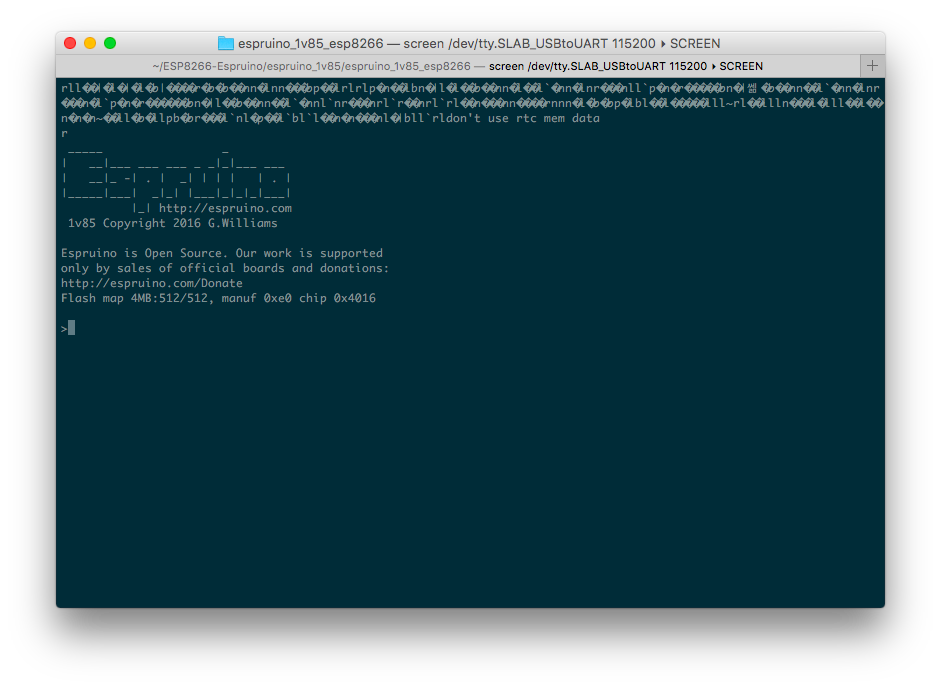
And we should establish a connection to the USB port at a baud rate of 115200 (press Ctrl-A followed by Ctrl-\ to quit). The screen should go blank at this point, so the easiest test is to reset your ESP8266 Development Board, which outputs the startup message shown below once the Espruino firmware starts running:
Finally, we can use the Espruino API to test out a few commands. Connect an LED to the pin labeled D2 on the board, which corresponds to GPIO4 on the ESP8266 SoC. If we input the command:
digitalWrite(D4,1)
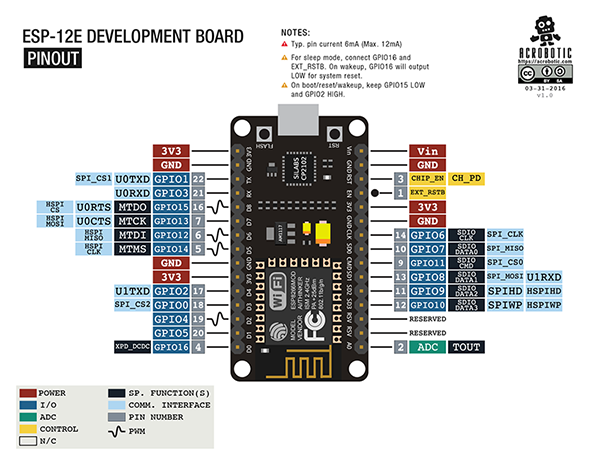
The LED should turn on! Remember that the Espruino firmware uses the GPIO numbers instead of the board labels to refer to each pin. Make sure you have our trusty pinout diagram handy:
Finally, we can combine traditional JavaScript with the Espruino API to write a Blink program:
var status = 1; setInterval(function(){status = !status; digitalWrite(D4,status)},1000)
Comments, questions, or concerns? Drop us a line!.
About Us

ACROBOTIC is a small, bootstrapped Open-Source electronics startup dedicated to the design of hardware and software products for use in education, DIY, hobby, arts, science, and more!
We enable tinkerers of all ages and skill levels to interact with the physical world around them employing a wide variety of digital and analog devices.